
How-to add a new Company Contact with Name on the iPhone

H ave you ever added a new company contact to your iPhone Address Book? Have you also provided a First and Last Name of the contact, working at that company?

If you did, you may have noticed that the iPhone will treat this new contact after saving not as a company, but as a normal person contact.
I personally had to deal with this “issue” a few times recently. But I found a workaround:

  1. Simply add a new contact in the Address Book, type the Company name – enter all other information EXCEPT First & Last Name
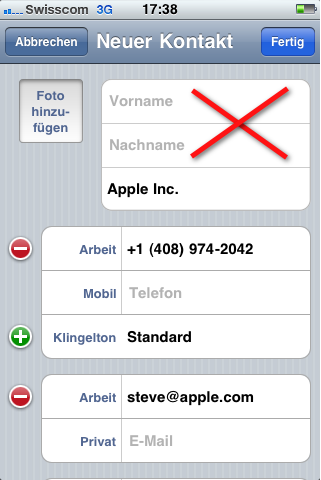
    iPhone Add New Company

  2. Save the Contact & go into Edit mode right away
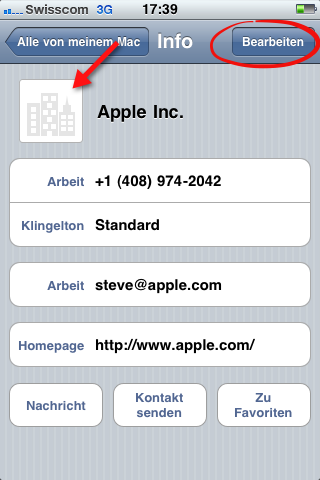
    iPhone Edit New Company

  3. Now add First & Last Name of the contact person
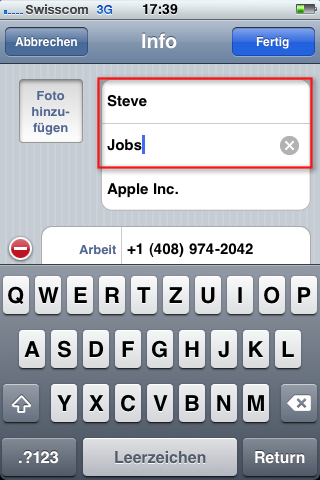
    iPhone Add Company Contactname

  4. Save again.

Tadaa – the contact is still recognized as “Company” but with the Contact’s name!
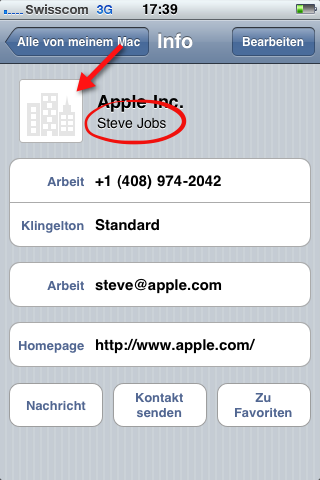
iPhone New Company with Contactname

This entry was posted in Software and tagged by Oliver. Bookmark the permalink.

About Oliver

IT Business Analyst with Bachelor in Business IT & Higher VET. Mac User. Likes cooking, reading, watching movies, flying kites, having a drink with friends, coding websites.

One thought on “How-to add a new Company Contact with Name on the iPhone

  1. Pingback: Tweets that mention oliver @ blogging » Blog Archive » How-to add a new Company Contact with Name to the Address Book -- Topsy.com

Leave a Reply

Your email address will not be published. Required fields are marked *

*

You may use these HTML tags and attributes: <a href="" title=""> <abbr title=""> <acronym title=""> <b> <blockquote cite=""> <cite> <code> <del datetime=""> <em> <i> <q cite=""> <strike> <strong>